
Browsing online is both fun and exciting, but it is not always protected. There are numerous things that can affect your security, such as phishing sites, trackers, cookies, and malware. It’s difficult not to fall victim to at least one of them. Google Chrome has become one of the most popular web browsers. It offers a simple, clear, and accessible structure that ensures a secure and safe browsing experience.
Despite the company’s excellent work in developing a safe and secure browser, there are various ways to improve its security and avoid falling victim to attackers. Fortunately, there are Chrome extensions available to help you improve your security.
Table of Contents
How to Add Chrome Extensions?
Google Chrome extensions are available through the Chrome Web Store, where you can install and run them directly into your browser. Any Chrome extensions you add will be stored in Chrome’s right-hand corner, giving you quick access to their settings.
Avast Online Security
By visiting the wrong website, you risk infecting your computer with malware. Avast Online Security aims to block and alert you of dangerous, virus-hosting websites by marking them as Safe or Not Safe based on user input; you can also provide feedback.
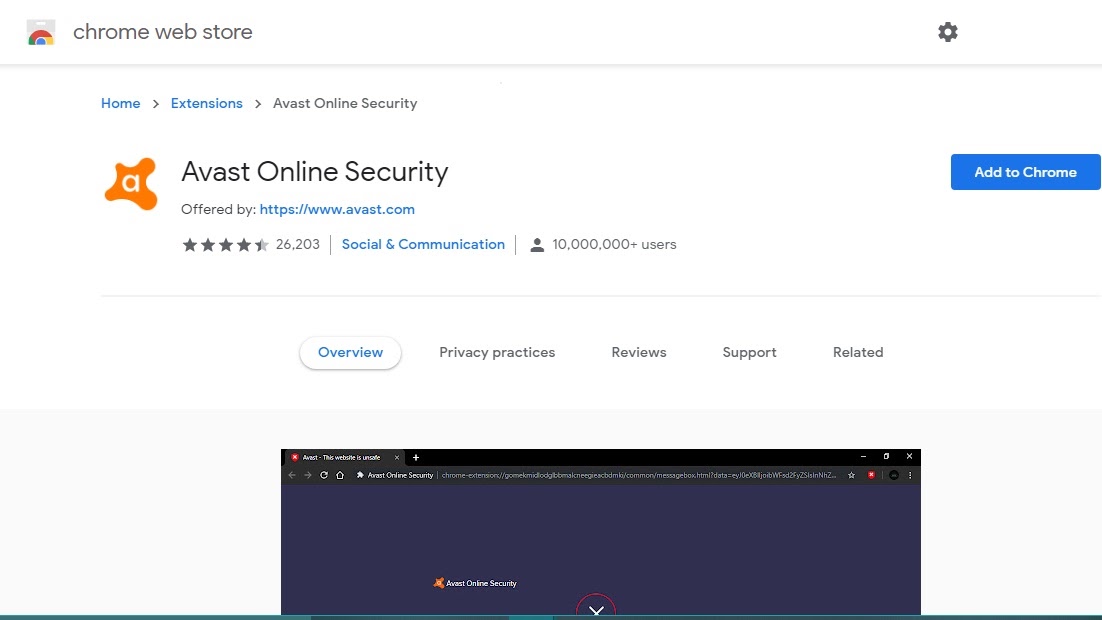
Avast can also help you in blocking cookies and tracking adverts. To block ad trackers, analytics sites, and social networks, right-click the toolbar icon and choose Options. You can also make changes to other settings.
Ghostery
When it comes to privacy, Ghostery is one of the most trustworthy Chrome extensions. The extension works effectively to remove any and all trackers that may have been installed on a website. It keeps the information about all the trackers identified on a website, and users can explore each tracker to learn more about how they work. Whether it’s social networking, advertisements, or analytics, Ghostery can remove any type of data tracker with a simple Chrome extension installation.
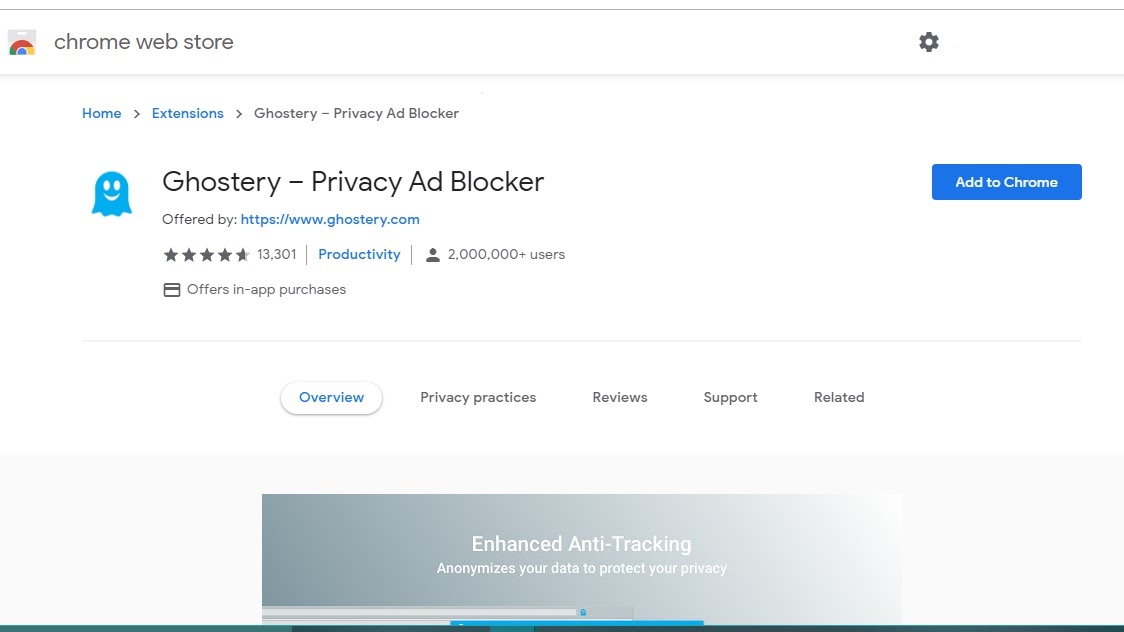
As Ghostery automatically disables all trackers, users can choose to allow a specific website to track their data. This is only going out to websites that users absolutely trust and want to have access to their data. If you don’t like a certain type of tracker, you can disable it in the extension’s settings and allow other trackers to do their work.
PureVPN
A VPN helps to encrypt all internet traffic and provides an additional layer of protection against eyes searching the Internet for free personal data. PureVPN is one of the most popular Chrome extensions, and it is well-known for providing an above-par level of security and anonymity. PureVPN offers military-grade encryption, which is capable of keeping your data safe at all times. Like many other VPNs available in the market, it keeps the user connected to a safe and anonymous server while delivering the highest possible speed.
Aside from combating malicious entities, PureVPN uses a virtual IP address to keep the end-user identity entirely secret. In this manner, unless a hacker knows how to decrypt a masked identity, no hacker has access to your true identity. Aside from that, PureVPN blocks adverts, data trackers, leak prevention, and protects against malware threats.
HTTPS Everywhere
An HTTPS connection ensures that no one can track a user’s browsing activity or steal personal information. However, not every website on the Internet uses an HTTPS connection, which introduces the possibility of fraudulent activity.
HTTPS Everywhere is a Chrome extension that will connect users to an HTTPS version of any website they visit whenever possible. Encryption improves security and privacy, and HTTPS Everywhere adds an additional S (secure) to any unsafe HTTP website connection.
The extent to which this Chrome extension is useful is determined by a website’s SSL certificate. For smaller websites that lack those certifications, the extension gets to work by displaying a warning message and informing users to be careful. In such circumstances, users will have to manually disable the extension before returning to the website if necessary.
Adblock Plus
Many websites rely on display advertising to pay their expenses, but the ones that appear unexpectedly in your browser can be irritating and intrusive. Adblock Plus’s purpose is to block adverts that interfere with your web browsing, such as pop-ups, video commercials, and flashing banner ads.
Adblock Plus by default enables Acceptable Ads, which are those considered less annoying but required for websites to continue offering free content. If you don’t want to view any adverts, you can disable that option.
Right-click the AdBlock Plus toolbar icon and select Options to configure the Chrome extension. You can block certain types of tracking, add whitelisted websites that show advertising you don’t mind seeing, and include or delete filter lists to define which types of sites and ads are restricted on the Options screen.
Windows Defender
The Windows Defender extension for Chrome protects against phishing, fraudulent websites, and other suspicious behaviors in real-time. Microsoft can help users in avoiding falling victim to phishing links.
When you click on one of these URLs, it starts an unwanted download to your device without your permission. These downloads can include extremely malicious software that has the power to damage your computer. They can sometimes discover sensitive information that has been preserved.
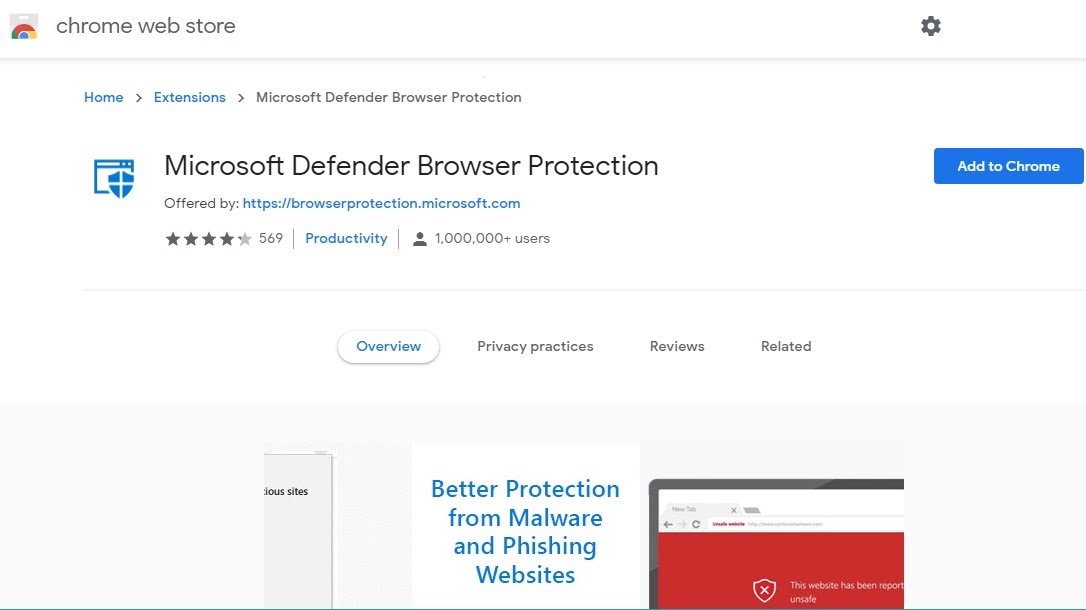
When a user clicks on an unauthorized external link, the defender displays a red warning screen. If the site is known to be unsafe, the screen will alert them. The defender has scanned the site at this point.
Click&Clean
Due to an emergency, such as a security breach, users are often required to entirely remove all of their saved passwords, download history, and cache form data. This can be a time-consuming process. Thanks to a Chrome extensions, Click&Clean, users can delete everything with a single click.
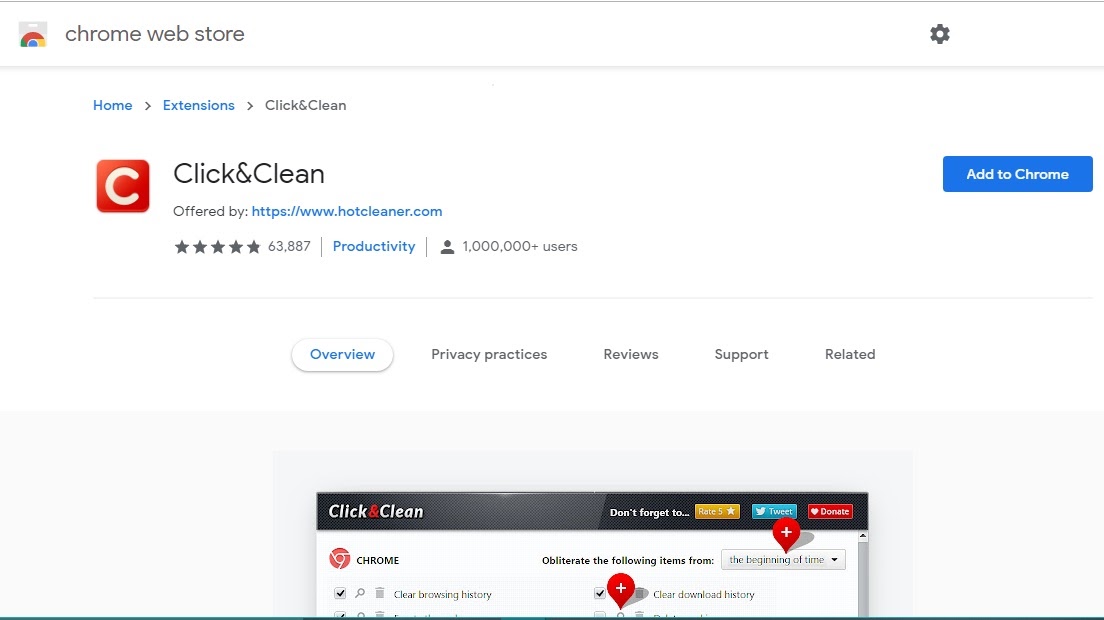
Users can erase everything, even individual items, by opening the icon on the toolbar. This is one method of ensuring that browsing sessions are secure and confidential. It also allows you to delete your data history from Incognito mode and generate alphanumeric passwords.
Conclusion
Users can always change whether or not they feel a site should be blacklisted or whitelisted. The main objective of these Chrome extensions is to give users complete control over their privacy and security while browsing and using the internet.