
The simple concept of Twitter has allowed it to attract over 305 million active monthly users, making it one of the most popular social media platforms. However, like with any site with a large number of users, cybercriminals see a chance to profit. It’s important to remember that social media firms thrive on conflict when it comes to remaining safe on Twitter. While there are measures in place to protect your account, you cannot totally protect yourself from all sorts of abuse.
According to sources, this week’s breach of Twitter’s most prominent users came from within the house, and there was nothing anyone could do to stop it. Spending less time on social media or deleting your account is the only sure method to protect yourself. As a result, it is important that you maintain your account as secure and protected as possible. Here are some tips you should take to keep your Twitter account secure and safe.
Table of Contents
Privacy
Twitter, unlike some other social networking platforms, offers relatively simple privacy settings: either your account is fully private and your Tweets can only be viewed by those you approve of, or it is fully public and your Tweets can be read by anyone in the world. The type of account you have and how you use it will most likely determine whether or not you should be private.
While privacy is necessary, there are some accounts that should be made public. Celebrities, professional businesses, and entertaining anonymous accounts all have valid reasons to make their accounts public. However, the choice for a person’s personal account is not as clear. While we often advise adopting the safe path and keeping your account private, this is not the case with Twitter because of the way the network is set up, and there are other things to consider.
For example, if you don’t Tweet anything, or if you just Tweet about topics that don’t reveal any personal information, it’s probably good to make your account public. Even still, if you have any doubts, going private is unquestionably the safer option. Remember that Tweets from a public account can be read by anyone on the internet. Furthermore, regardless of your privacy settings, your profile photo and bio can be seen by anyone, so don’t disclose any private information via those.
Password
Create a unique and strong password for your Twitter account. You should also create a password that is both secure and unique for the email address linked with your Twitter account. A secure password is essential for any private account you may have. Instead of choosing a basic or easy-to-guess password, consider something hard and safe. You should also avoid reusing passwords and update them on a regular basis.
You can also use password reset protection to ensure that no one can gain access to your Twitter account and then lock you out. When you select this option, you will be prompted to provide your email address or phone number anytime you attempt to change your password.
How can you find your password reset settings?
- Go to your main menu.
- Select Settings and Privacy.
- Click Account and then Security.
- Password reset protection can be enabled or disabled here
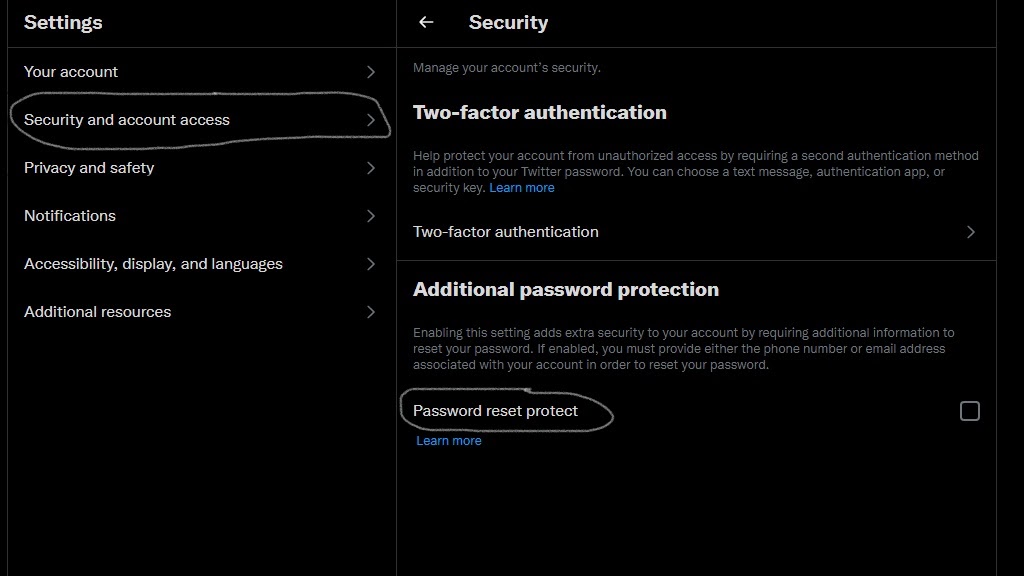
You can then specify how you want to receive your second forms of verification, such as a text message, an authenticator app, or a security key. When Login verification is enabled, you’ll be prompted to enter your password, followed by the login code given by the second type of verification. When you’re not connected to the internet, you can use the backup codes provided by Twitter when you enable this option. Just make sure you save them in a secure place.
Country
Setting up an account based on your country will help you find other people from the same country. To do so, navigate to your settings and select the “account” option. Click the “content” header, and then choose your country from the drop-down menu. While having your country linked to your account is useful, being too specific about your location is dangerous. Unfortunately, there is a feature on Twitter that allows you to include your precise location in your Tweets.
Location
You can send tweets with location information linked to them. This feature allows users to share their location and connect with others who are in the same location. However, as well-intended as location sharing was, broadcasting your actual location online might be harmful to some. The good thing is that you can remove this feature at any moment.
Navigate to Settings & privacy > Privacy and security > information about the location and uncheck location information in your Tweets. You can also delete location data from previous tweets from this page, but be aware that this may take some time to apply to all tweets.
Advertising and data tracking
Though Twitter hasn’t been afflicted by the data-collection crises as Facebook has, the company still tracks your behavior in order to provide personalized ads. If you want to protect your account and information, you should be able to manage how Twitter collects and shares data.
Select Settings and privacy > Privacy and security > Personalization and data. Personalized advertisements and personalization based on identity, location, and the device can be disabled. You can also block Twitter from sharing the data it collects with marketers. By clicking the button next to the Personalization and data heading, you can turn off all of these features at once.
Mute words
Sometimes certain words or phrases can be dangerous for users to view, Twitter allows you to mute them. By adding a term to your mute list, Twitter will automatically filter out any tweets containing that word from your feed. Click to Settings & privacy > Privacy and safety > Muted > Muted words to mute a word. To add a new word, click the + symbol (desktop) or the Add button (mobile).
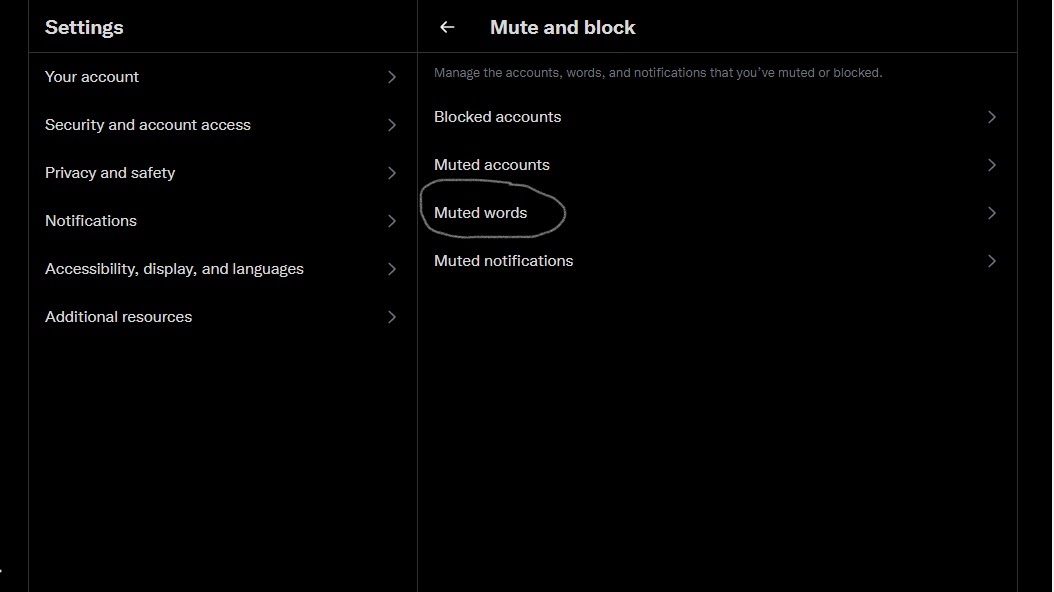
You can then decide how long you want it muted for 24 hours, 7 days, 30 days, or permanently. Then choose whether you want the word muted from your timeline, alerts, or both, as well as whether you want it muted from everyone or just those you don’t follow. Select a muted word and select Delete word (mobile) or tap the muted speaker icon to remove it from your blocked list (desktop).
Block and mute accounts
By blocking an account, you confirm that it will no longer appear in your timeline and that that individual will not be able to view your activity. However, users will be aware if you block them, so some individuals prefer to mute them instead. When you mute an account, their tweets are removed from your feed. If you follow them, you’ll see responses and mentions in your notification; if you don’t, they won’t display.
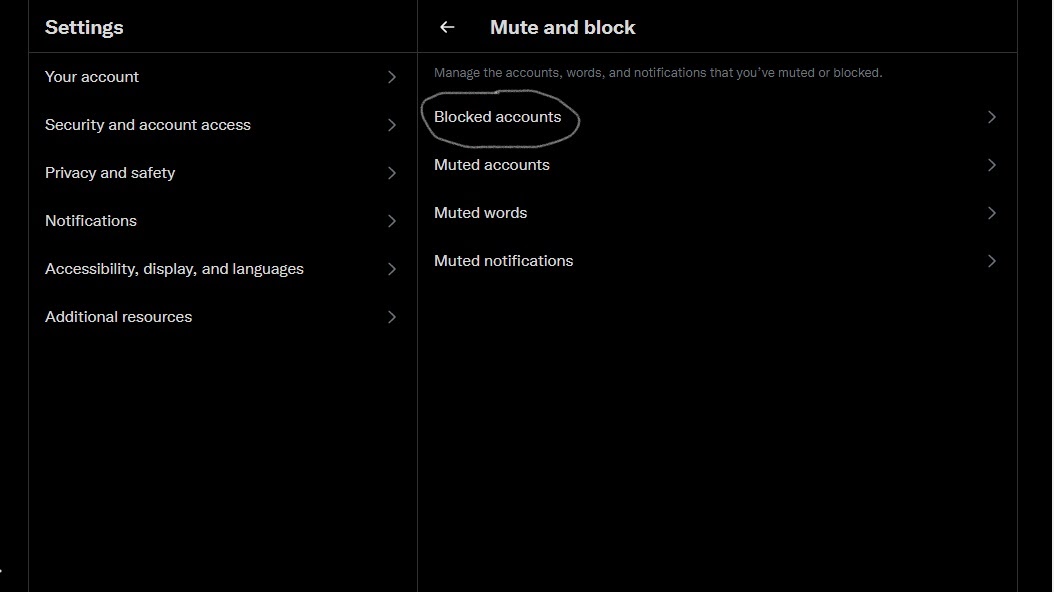
There are two ways to block or mute someone. Select the three-dot icon on the account’s profile page and then Mute or Block. Alternatively, from within your newsfeed, hit the downward-facing arrow and select Mute or Block. Check muted accounts by going to Settings and privacy > Privacy and safety > Muted > Accounts have been muted. Examine the blocked accounts by going to Settings and privacy > Privacy and safety > Accounts have been blocked.
Security
Always be on the alert for malicious links when using Twitter, or any other website or online source. Don’t click on it if you don’t know what it is. If you do click on a suspicious link, or if your account is hacked by any other means, change your password as quickly as possible. This is the easiest method to ensure that your account stays completely protected. Simply go to your settings and click “password,” and a password reset option will appear. Also, if you find that someone else’s account appears to have been hacked, inform them and tell them to change their password.
Two-factor authentication
There is an option to enable a two-step verification system under security settings. When you enable this, Twitter will send a unique code to your mobile phone whenever you attempt to log in, which must then be entered along with your password in order for you to be logged in. Instead of depending on a password, two-factor authentication adds a second check to ensure that you and only you have access to your Twitter account.
Only those who have both your password and your cellphone (or a security key) will be able to access your account. This adds an extra layer of security to your account, making it much more difficult to hack into.
Make sure you are on the actual Twitter’s site
Phishing occurs when someone attempts to mislead you into giving your Twitter username, email address, mobile number, and password, usually so that they can send spam from your account. They’ll often trick you by sending you to a fake login page. Whenever you’re required to enter your Twitter password, check the URL in your browser’s address bar to ensure you’re on twitter.com. Furthermore, if you receive a Direct Message (even from a friend) with an unusual URL, it is recommended not to click on such a link. Phishing websites often appear similar to Twitter’s login screen, but they are not Twitter. The main domain for Twitter domains will always be https://twitter.com/.
Be Cautious with third-party apps
There are several third-party apps developed by external developers on the Twitter platform that you can use with your Twitter account (s). You should, however, take extra care before granting third-party applications access to your account. If you want to give the third-party application access to your account, it is recommended to use Twitter’s OAuth method. OAuth is a secure connection technique that does not require you to disclose to the third party your Twitter login and password.
You should be especially cautious when asked to provide your username and password to an app or software because third-party applications do not require your username and password to get access to your account through OAuth. When you give someone your username and password, they have total control over your account and can lock you out or do activities that cause your account to be banned.
Disable DMs
Though Twitter is primarily a public messaging platform, users can also send private Direct Messages (DMs) to one another. DMs could only be sent between two people that followed each other at first. However, in 2015, Twitter permitted users to open their direct messages to anyone, which can be beneficial for some but harmful for others.
To restrict who can message you and if they can see you read their message, go to Privacy and safety > Direct Messages and check the status of your DMs. Uncheck Receive messages from anyone to prevent people you do not follow from sending you direct messages. Disable ‘ Show read receipts to avoid notifying individuals of the fact that you have read their message. You can also use a quality filter to remove messages that Twitter considers to be “lower-quality.”
Edit discoverability
Twitter monitors your phone and email contacts to locate people you may know on Twitter and recommends them as someone to follow. That is, you will appear in front of people who have your contact information. But just because you have someone’s phone number doesn’t mean you want them following you on Twitter.
Fortunately, this is disabled by default, but you may confirm that everything is to your satisfaction by visiting Settings and privacy > Safety and privacy > Discoverability You can prevent users from discovering your account by deactivating only email addresses, phone numbers, or both. If you don’t want your contacts to be visible on Twitter, you can manage them and remove them from the app’s records.
Conclusion
These tips give you a basic to advanced framework for securing your account. It is important to stay safe on every social media platform. The above tips help you stay safe when sharing your opinions on Twitter. Also, secure your other social media platforms like Facebook, Instagram, and LinkedIn.
















Pingback: A Complete Guide to Instagram Security - Security Pilgrim
Pingback: A Guide to Your Facebook Security - Security Pilgrim